The problem
Your stream background
is making you look
like everyone else.
You've spent hours on overlays, alerts, and panels. But when it comes to the actual backdrop behind you — or the background filling your whole screen — the options are either generic, broken, or someone else's ads.
Here's what the current options look like:
Green screen. Wobbles on edges. Spills onto your hair and clothes. Needs studio lighting to look clean. Requires careful setup every stream. One bad light and you have a halo of green pixels for three hours.
Plain wall. Fine for podcasts. For anyone trying to build an aesthetic — a brand, a vibe — a white wall says nothing. It tells your viewer exactly as much about you as a blank bio.
YouTube background loops. Ads. Auto-play. Possible copyright strikes on your VODs. Not licensed for broadcast or streaming. And your viewers have already seen the same lo-fi girl animation on twelve other channels.
Stock loop packs. Short clips that obviously loop every 30–60 seconds. Expensive for decent quality. The same pack is on Envato Elements that everyone else is using. Nothing exclusive, nothing original.
There's a cleaner path.
OBS setup
Add to OBS in under a minute
No downloads. No file management. Just a URL in a browser source — that's the entire setup.
- 01
Subscribe and copy any watch URL
After subscribing, browse the library, open a video, and copy the URL from your browser's address bar — e.g. surrealism.ai/watch/lofi-chill-music-psychedelic-visuals
- 02
In OBS: Sources → + → Browser Source
In your Sources panel at the bottom of OBS, click the + button and select "Browser" from the list. Paste the URL and set width/height to your stream resolution — 1920×1080 for 1080p.
- 03
Log in inside OBS
OBS has its own browser that doesn't share your normal login. Right-click the browser source → Interact, then log in to your Surrealism.ai account. You only need to do this once — OBS remembers the session.
- 04
The video loads and autoplays
Once logged in, close the interact window. The video will load and play automatically inside the browser source.
- 05
Mute the audio if needed
In the OBS Audio Mixer panel, find the browser source and lower its volume to zero. The visual plays exactly the same without audio.
- 06
Layer it behind your webcam
In your Sources panel, drag the browser source below your webcam capture. The visual fills the background, your webcam stays on top.
Works the same in Streamlabs, StreamElements OBS Live, and vMix — any software with a browser source option uses identical steps.
Example URL
surrealism.ai/watch/lofi-chill-music-psychedelic-visuals
Stream types
Works for every kind of stream
Lo-fi & chill streams
Psychedelic but relaxed visuals that match the vibe without fighting it. Perfect for study streams, coding sessions, and laid-back variety content.
DJ sets & music production
Fast-morphing fractals, neon cityscapes, and surreal dreamscapes that keep the energy of a live set without requiring VJ software.
Art & creative streams
Abstract AI-generated visuals that complement creative work without pulling focus. An ambient backdrop that says something.
Gaming with ambient background
Layer surreal visuals behind your webcam for a unique aesthetic that separates your stream from the sea of plain walls and green screens.
Most popular for streamers
Pro — $299.60/yr
Built for streamers who clip their best moments. Pro includes everything in Plus — full library access, 4K streaming, zero ads — plus the rights to post clips on social media.
Under $25/month. One year of content for less than two months of most stock footage subscriptions.
Get ProIncluded with Pro
Full library access. 20+ AI-generated 4K videos, 7–12 hours each
Zero ads. No interruptions, ever — during your stream or after
OBS & Streamlabs browser source. Paste a URL — that's the entire setup
Social posting rights. TikTok, Instagram Reels, YouTube Shorts, and Facebook clips
Streaming use rights. Twitch, YouTube Live, Kick, and all major platforms
Need white-label or commercial rights? Platinum is $999.60/yr.
The library
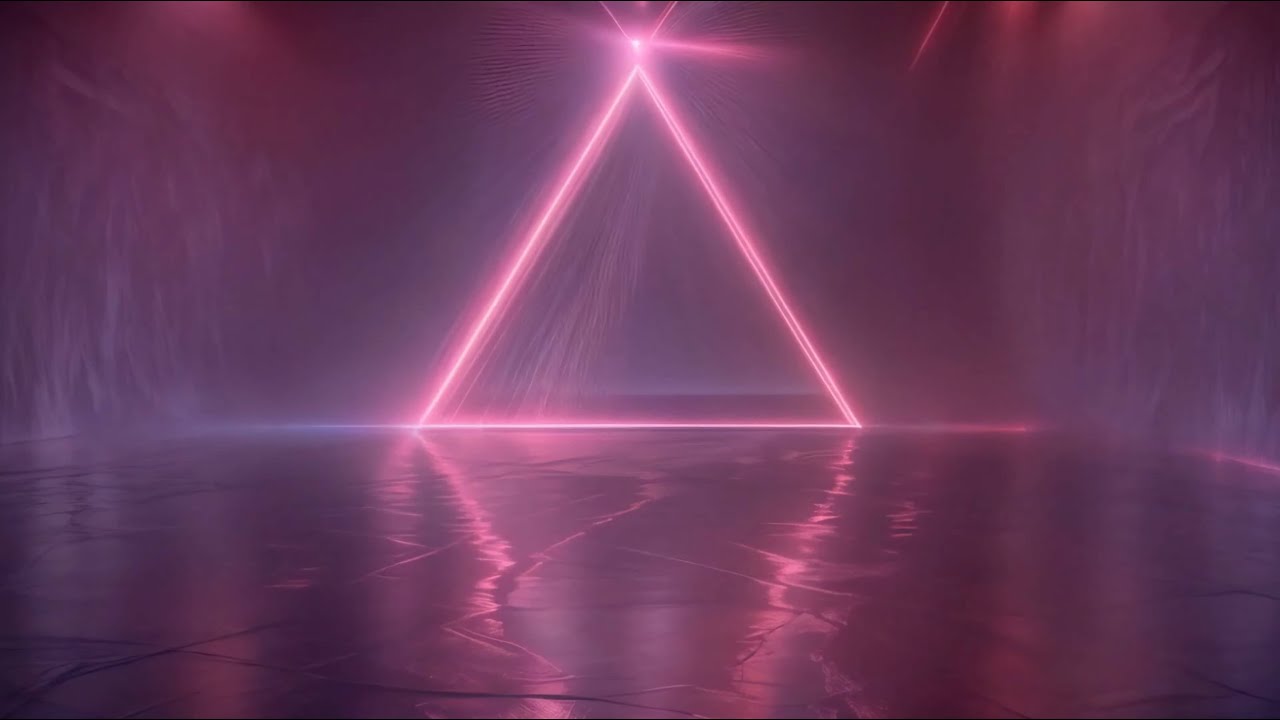
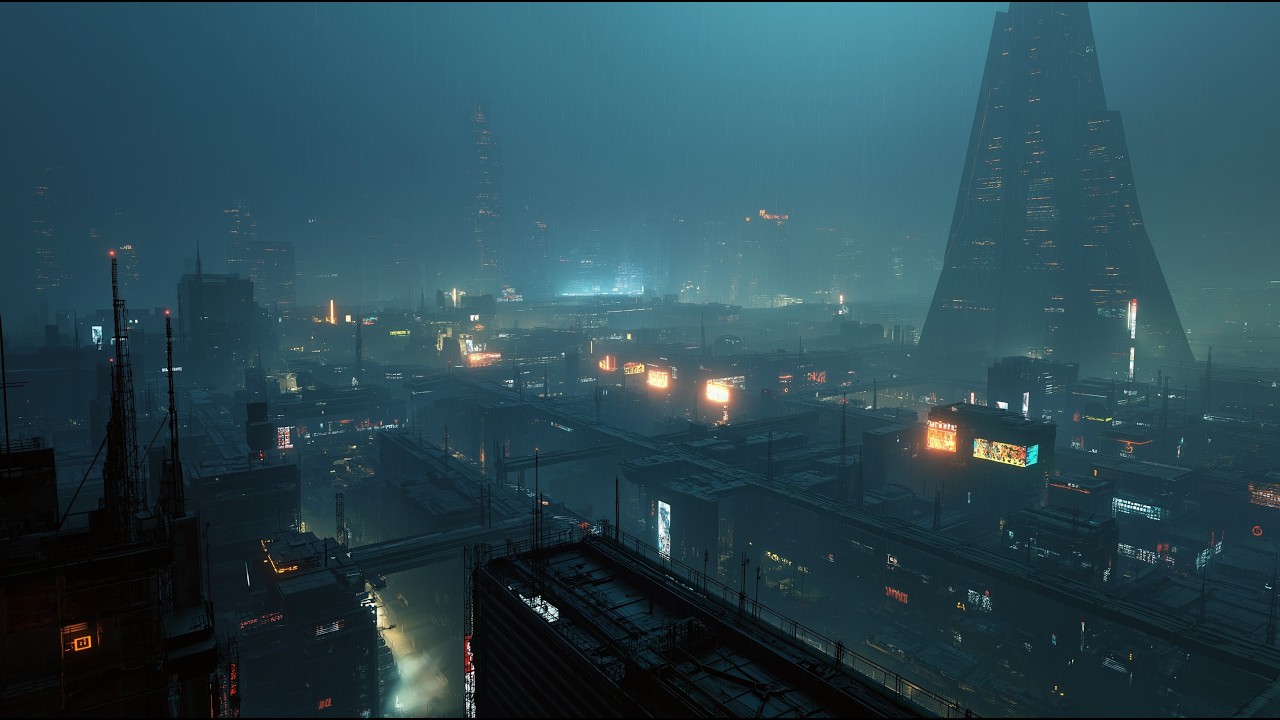
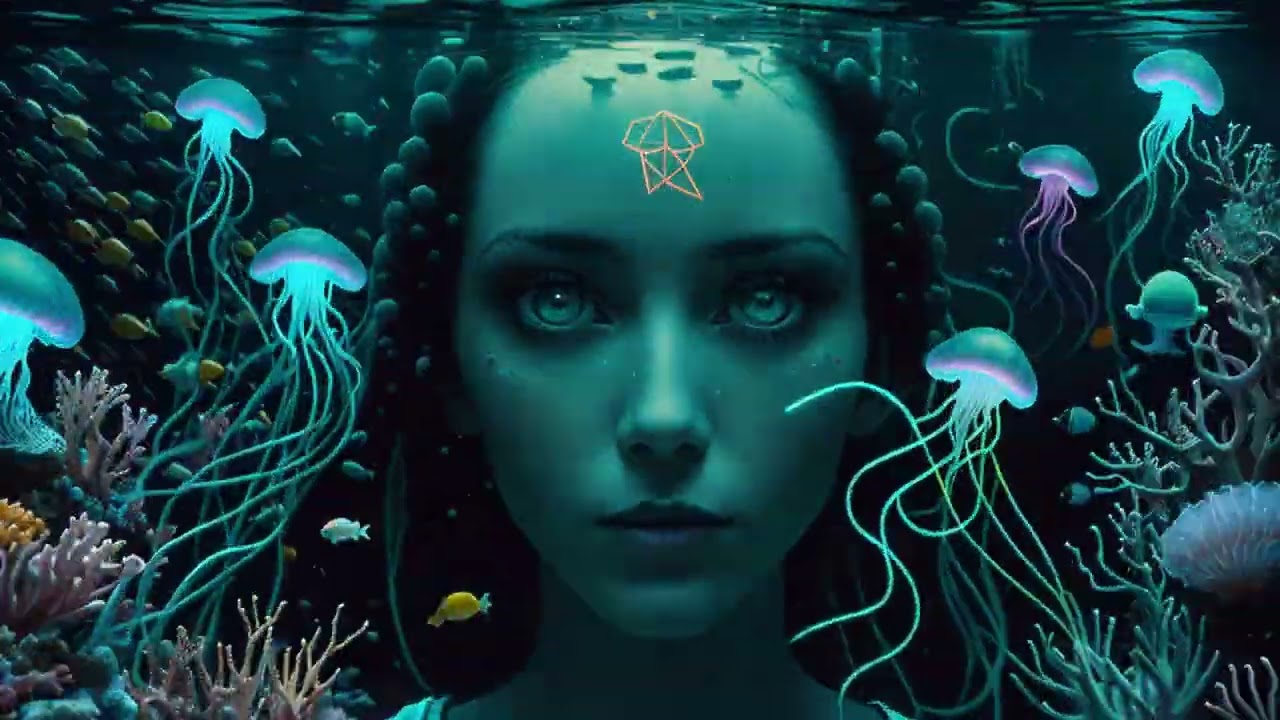
Pick your backdrop



Related
Explore more
Visuals for DJs
Venue-licensed 4K visuals for live DJ sets and performances.
Visuals for Content Creators
Backdrops and overlays for TikTok, YouTube, and short-form content.
Visuals for Events
Projection-ready 4K for festivals and live performances.
Commercial License
Full posting, venue, and white-label rights explained.
Your stream has never
looked like this.
Full library access on every plan. Add a browser source in OBS, log in once, done.
Start streamingFrequently asked questions
Does it loop?
Each video runs 7 to 12 hours before any scene repeats. For a standard stream of 2–8 hours, nothing will loop. The AI-generated content cycles through distinct scenes throughout the runtime.
Can I mute the audio?
Yes. In OBS, right-click the browser source and select "Properties" — you can mute audio there. Alternatively, lower the volume in the audio mixer panel. The visuals play exactly the same with or without audio.
Does it work on all streaming software?
Any software with a browser source will work: OBS Studio, Streamlabs, StreamElements OBS Live, and vMix. The setup is the same on all of them — add a browser source, log in to your account inside it (the built-in browser has its own separate session from your regular browser), and the video plays.
Which plan do I need?
Plus ($149.60/yr) covers streaming use. Pro ($299.60/yr) adds social posting rights — TikTok, Instagram, YouTube, and Facebook. If you clip highlights from your streams, Pro is the right plan. Platinum ($999.60/yr) covers commercial and white-label use.
Can I post clips on social media?
Yes, on the Pro and Platinum plans. If you clip moments from your stream and post them to TikTok, Instagram Reels, YouTube Shorts, or Facebook, you need Pro or higher. Plus is for streaming only.
What resolution does it stream in?
Up to 4K. In OBS, set the browser source dimensions to match your stream resolution — 1920x1080 for 1080p, 2560x1440 for 1440p. The video will fill the source and scale to whatever you need.